Hello everyone. Japan began adopting the PayPay payment app back in 2018. It’s paving the way for a future where you won't need to carry a bulky wallet filled with cash or cards anymore—much like the cashless society China established long ago.
If you are living in or planning a trip to Japan, setting up a PayPay account is essential for online transactions like shopping, paying bills, transferring money, and more. In this post, I’ll guide you through the full, detailed process of registering for a PayPay account in Japan.
About PayPay
PayPay is an incredibly popular mobile payment app in Japan that allows users to perform online and offline transactions easily and quickly. With PayPay, you can shop online, pay bills, transfer money, and handle various other transactions conveniently. The app has attracted millions of users across Japan.
Additionally, PayPay is integrated into many shops and restaurants, allowing users to pay quickly and easily just by scanning a QR code. With high security and safety features, PayPay is becoming one of the most beloved mobile payment apps in the Land of the Rising Sun.
How to Register for PayPay
Registration and usage are simple and fast. I wrote this guide to walk you through the steps from downloading the app to making payments. I hope this will be helpful for anyone using this service for the first time, just like I did.
Step 1: Download the App
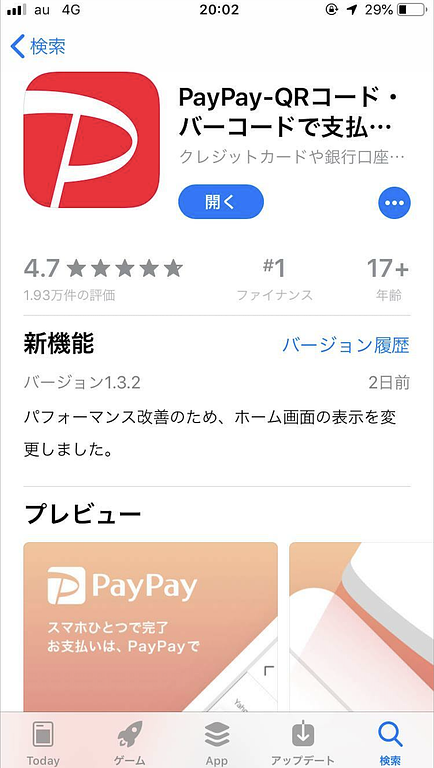
If you are using iOS, just go to the App Store and search for "PayPay," and you'll find the app as shown in the image below.
Step 2: Sign Up / Log In
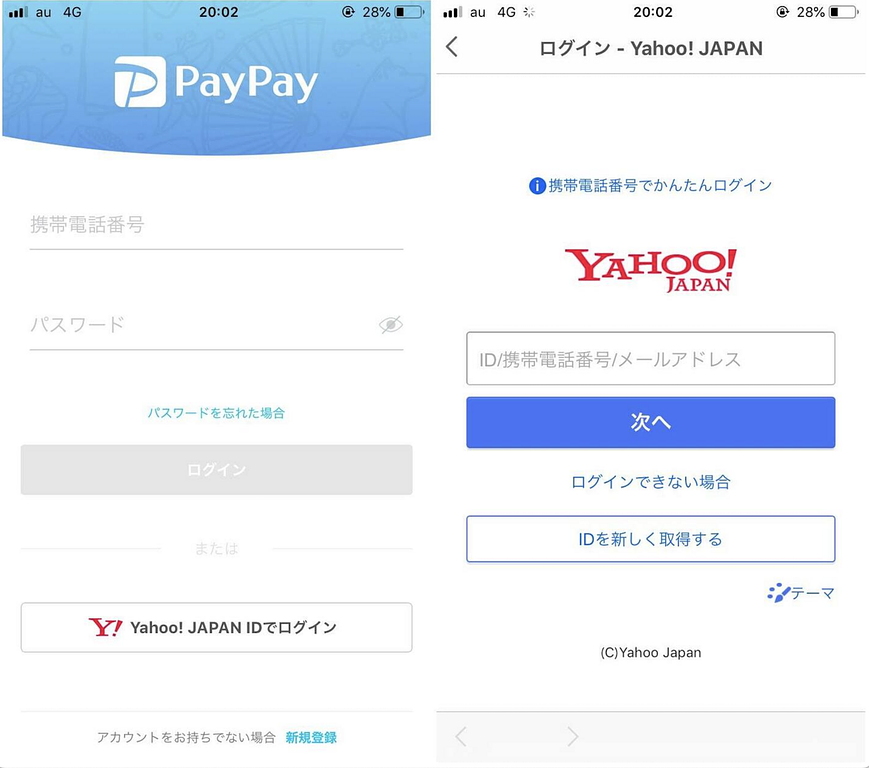
There are two ways to register for a PayPay account: entering your phone number and password, or registering via a Yahoo! JAPAN account. Personally, I recommend registering using a Yahoo! JAPAN account for convenience, as you will eventually need a Yahoo! JAPAN ID to link your bank account anyway.
For those who don't have a Yahoo! JAPAN account yet, create a new one by selecting IDを新しく取得する (Get a new ID). If you already have an account, just enter your phone number, then enter the verification code sent to you, and you can start using PayPay.
Once logged in, the system will remember your login information, so next time you open the app, it will log you in automatically without needing to re-enter your details.
Step 3: Link Your Bank Account
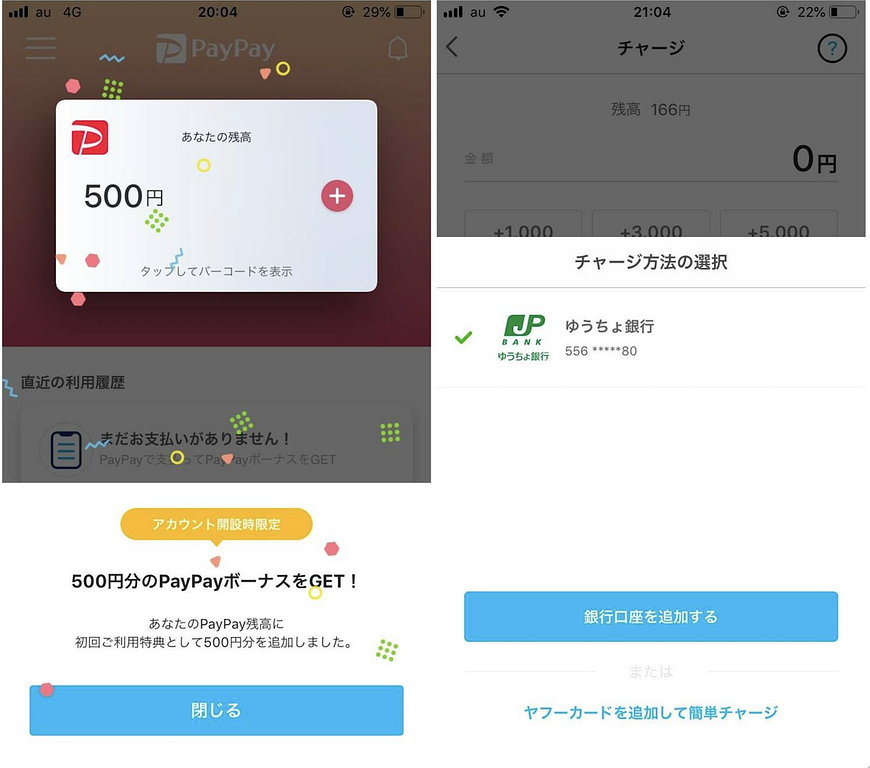
After successfully registering, you will be gifted your first 500 yen (~$3.30 USD). To load money into PayPay and use it, you need to link a bank account. Charging money into PayPay means funds will be instantly withdrawn from your bank account and added to your PayPay balance.
To link a bank account, first tap the "+" sign where your current balance is displayed; this is also the action for charging money. Since it's your first time and no bank account is linked yet, the list will be empty. To add a bank, select 銀行口座を追加する (Add Bank Account).
Example: Linking a Yucho (Japan Post) Bank Account
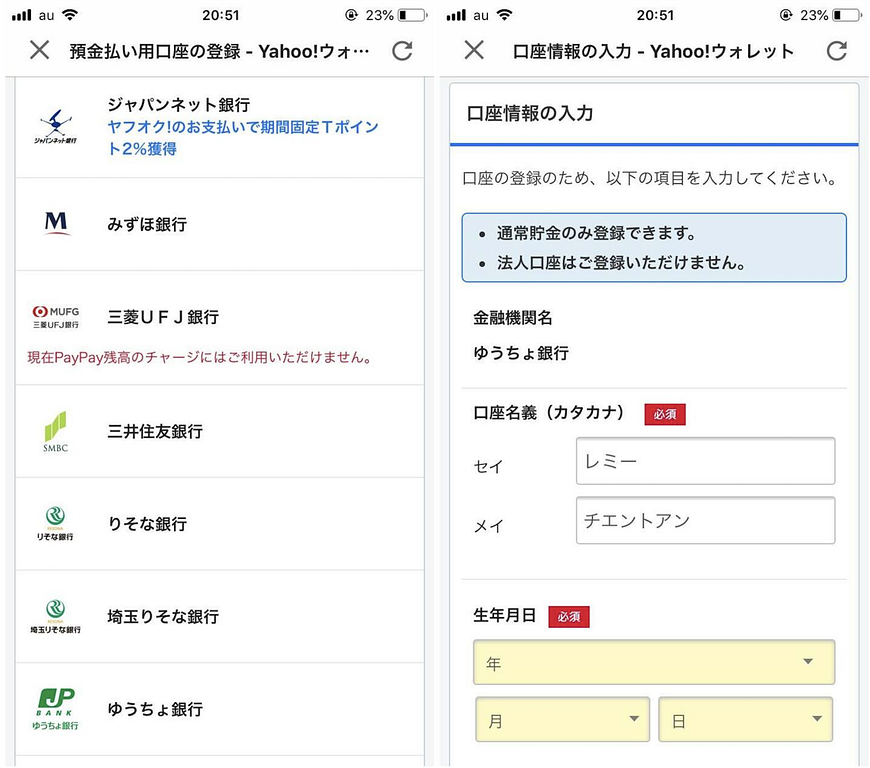
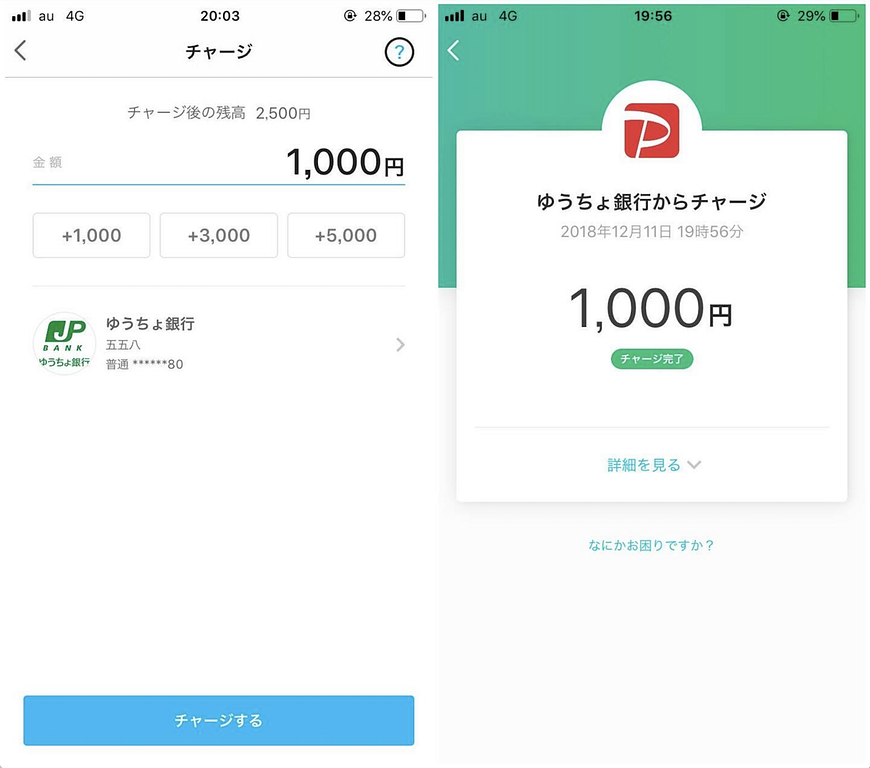
After selecting 銀行口座を追加する, a list of available banks will appear. I'm used to using Yucho Bank. Select the bank you want to use for charging money, and enter your bank account information.
Step 4: Charge Money to PayPay
Once you've added your bank account, charging money is very fast and simple. Just tap the "+" sign at your current balance, and the charging screen will appear. Then, simply enter the amount you want to charge—I believe it must be at least 1,000 yen (~$6.60 USD). Afterward, select チャージする (Charge), and the money will be immediately deducted from your bank account and added to your PayPay balance.
And just like that, you are ready to use PayPay for payments.
Paying with PayPay
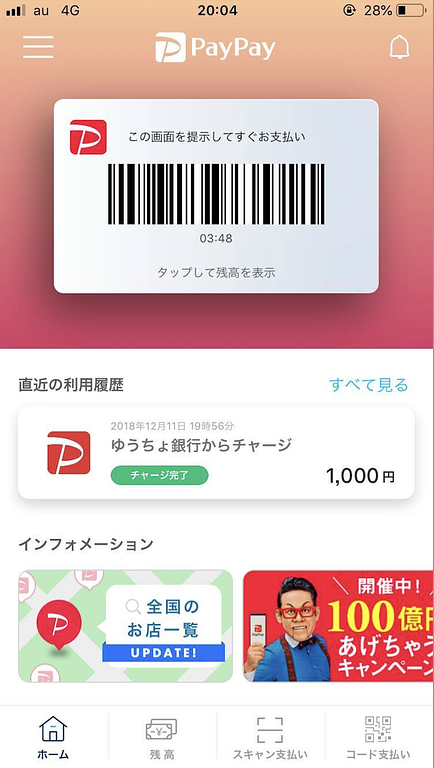
When shopping and paying with PayPay, simply tap the screen to display the barcode and show it to the staff for scanning. That's it.
Additionally, there are other functions such as scanning a code to send money to friends, or scanning to pay bills—like electricity or water bills—without needing to go to the konbini (convenience store).
It’s very convenient and economical, isn't it? As PayPay continues to expand in the future, there will be times when you can leave the house without a clunky wallet full of cards. Just a smartphone will be enough for shopping. Add the Suica app for riding trains, and almost everything is integrated into one compact smartphone.
Hello everyone. I'm an IT engineer working in Japan. I created this blog to share about life and experiences during my study and work journey. I hope this article will be helpful to you.